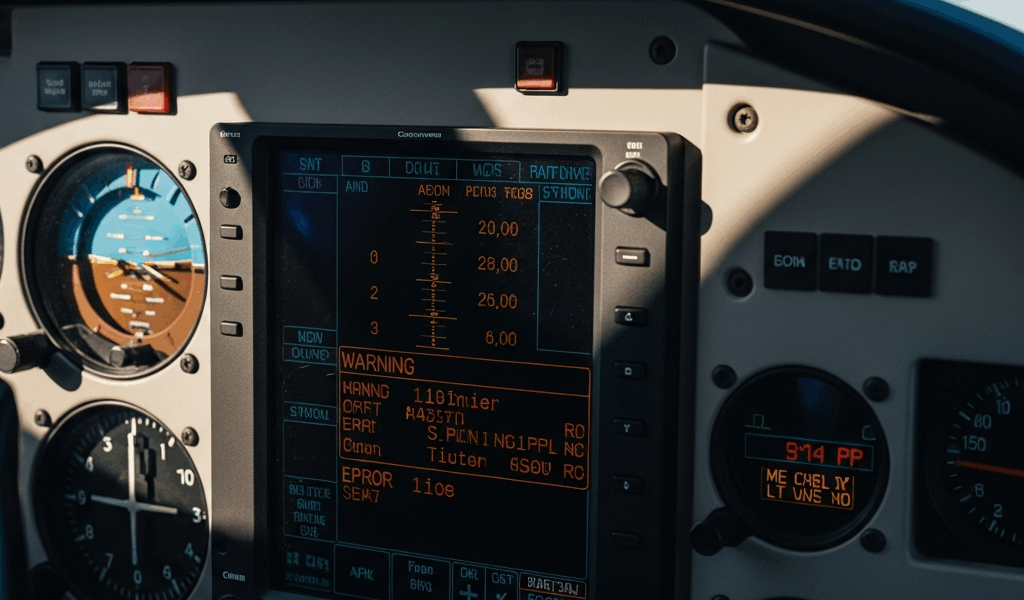
Why the GNX 375 Trips Up Even Experienced Pilots
Flying with the Garmin GNX 375 has gotten complicated with all the conflicting information flying around. Forums say one thing, avionics shops say another, and meanwhile your unit is doing something neither source fully explains.
As someone who spent three years troubleshooting these units at a Part 141 flight school, I learned everything there is to know about the ways this particular box can fail — and more importantly, why. Today, I will share it all with you.
The core issue isn’t complicated once you see it: the GNX 375 packs GPS and ADS-B Out into a single avionics box. Elegant on paper. In practice, it creates failure modes that pilots who’ve run separate units never anticipate. A WAAS dropout that looks like a GPS problem might actually be your ADS-B squitter going quiet. The unit keeps running. No screaming alerts. You land thirty minutes later, non-compliant, with no idea it happened.
So, without further ado, let’s dive in.
GPS Signal Loss and WAAS Lock Failures
GPS dropout tops every complaint list I’ve encountered. Your heading indicator works fine. Navigation holds. Then WAAS won’t lock — or you lose signal entirely for five, maybe ten seconds at a stretch.
Antenna placement causes this more often than anyone wants to admit. The GNX 375 ships with a remote antenna — a flat plate roughly 3 inches square — that needs to mount on top of the fuselage with a clean, unobstructed view of the sky. Installers sometimes position it too close to metal structures, tuck it inside a composite cowling gap, or, somehow, mount it facing downward. One Cessna 172 I worked on had the antenna sitting directly behind the windscreen frame. Every turn toward the sun killed lock completely.
Start here: go outside and visually inspect the antenna. It should lie flat against the skin, facing up, with nothing blocking the sky above it. Walk the entire fuselage. Antennas, pitot probes, windscreen frames — anything in the sky view will cause problems. That’s just physics.
Coaxial cable is the second culprit. The run from antenna to avionics stack typically covers 15 to 30 feet depending on the aircraft. Any pinch point, moisture intrusion, or corroded connector degrades signal. I once chased a GNX 375 dropout for an entire afternoon before replacing eight feet of coax that looked completely healthy from the outside. The foam insulation had absorbed water. That was it. Eight feet of cable, about $40 in parts.
Check your signal strength pages directly on the unit. Press Menu, scroll to System Setup, select GPS Information. You’ll get a bar graph showing signal strength for each satellite in view. Fewer than four satellites showing solid bars will cause WAAS lock issues or outright dropout.
Probably should have opened with this, honestly: I spent two full hours on a ground check one January convinced we had a failed antenna because the unit wouldn’t hold lock. Metal hangar. Other aircraft parked on both sides. I should have rolled it outside first. Now that’s rule one, every single time. Hangar ground checks fool experienced pilots constantly — your GPS antenna needs open sky, full stop.
ADS-B Out Failure Flags and FAA Reports
This is the one that keeps pilots awake. The GNX 375 quietly stops transmitting ADS-B, your transponder reads valid, everything looks normal on the flight deck — and three weeks later a non-compliance letter shows up from the FAA.
But what is an ADS-B Out failure, exactly? In essence, it’s the unit ceasing to broadcast your position and identity to ground stations and other aircraft. But it’s much more than that — because unlike a failed comm radio, you may never see an obvious indication it’s happening.
Squitter code mismatches are the first thing to check. The GNX 375 needs your aircraft’s tail number formatted precisely to build the ADS-B message correctly. During installation, the avionics tech should have entered your N-number into the unit’s configuration and verified it matches your transponder. Wrong number, missing number, or a number entered with spaces instead of dashes — any of those will flag as a failure and stop transmission. That’s what makes this problem endearing to us troubleshooters: it looks like hardware when it’s actually a typo.
Check it yourself. Pull up System Setup, find the Aircraft Identification field, and compare what’s there against your airworthiness certificate. N12345, not N 12345 or N-12345. Garmin’s format is unforgiving.
GPS antenna separation is a technical requirement that installers sometimes overlook. The GNX 375 manual specifies a minimum of 3 feet between the GPS antenna and any other antenna — VOR, comm, whatever. I’ve seen aircraft where an older VOR antenna was sitting 18 inches from the new GPS antenna. The GNX 375 would lose GPS lock intermittently, which then triggered ADS-B failures because the unit couldn’t confirm position. The fix was relocating the VOR antenna another 20 inches aft. Problem gone.
Outdated or corrupted databases also generate false failures. If the GNX 375 detects a database problem, it may stop ADS-B transmission as a precaution. Updates should happen monthly — either through the Garmin Pilot app or at a certified avionics shop.
Don’t make my mistake of assuming the flight deck display will warn you. Some aircraft owners discovered non-transmitting units during ramp checks. The unit had logged the failure internally. The display showed nothing that looked obviously wrong. Monthly ground verification — even just a quick preflight check — prevents this entirely.
Software Update Problems That Break Normal Operation
Garmin releases GNX 375 firmware updates several times per year. Most improve performance. Some genuinely break things that were working fine the day before.
Lost configuration settings are the most infuriating outcome — and the most common. You finish the update, restart the unit, and your tail number, home airport, saved frequencies, and custom waypoints have all vanished. Factory defaults. This happened consistently in firmware versions between 2.20 and 2.35. Newer releases are better about it, but it still occurs.
The correct update process protects against this. First, back up your configuration through Garmin Pilot on a laptop before touching anything. Second, format a Class 4 or higher SD card inside the GNX 375 itself — not on your Windows or Mac machine, which won’t create the right format. Third, download the exact firmware file for your specific serial number from Garmin’s website and drop it onto the formatted card. Fourth, insert the card, navigate to System Setup → Software Update, and follow the prompts without interrupting the process. Do not cycle power during an update. Not once.
Screen freezes on boot are another known issue, particularly when jumping from older firmware — 2.10 or earlier — straight to 2.45 or newer. The unit boots, holds on the splash screen, and sits there for two to five minutes before responding. Garmin added a delay in the boot sequence to handle larger databases. It feels exactly like a hardware failure. It isn’t. Wait through the full boot cycle before assuming anything is wrong.
Database card errors cause unnecessary panic. Remove the SD card, inspect the contacts for corrosion or debris, reinsert it firmly until you feel a definite click, and restart. If the error comes back, the card likely needs replacement — they run about $150 through Garmin or most avionics suppliers.
I’m apparently the person who skips support documentation, and Garmin’s known issues list works for me now while ignoring it never did. Spend fifteen minutes on their support page before assuming your unit is broken. Half the problems I thought were installation failures were documented quirks in that specific firmware version. Right there in plain text.
When to Call Your Avionics Shop vs Fix It Yourself
Some problems are pilot-fixable in twenty minutes on the ramp. Others require a certified avionics technician, a calibrated meter, and a logbook entry. Knowing the difference saves money and prevents in-flight failures.
While you won’t need a full avionics certification, you will need a handful of tools and honest self-assessment before deciding which category your problem falls into.
You can handle these:
- Database updates using Garmin Pilot or the SD card method
- Configuration verification — tail number, home airport, saved frequencies
- Antenna visual inspection from outside the aircraft
- Signal strength page review to assess GPS reception quality
- Firmware updates if the unit is under warranty or you have written guidance from Garmin support
- SD card reinsertion and basic contact inspection
Your avionics shop handles these:
- Coaxial cable inspection, replacement, or connector refurbishment
- Antenna repositioning or replacement
- Transponder recertification after any ADS-B Out failure event
- Installation configuration changes — antenna separation, mounting hardware
- Hardware replacement under warranty
- Firmware troubleshooting after self-help steps have failed
A basic avionics service visit runs $300 to $500 in labor alone — sometimes more depending on your shop and location. If the problem is a misconfigured tail number, that’s an expensive typo correction. If it’s a corroded coax connector at the antenna base, skipping the shop visit means flying with a failure waiting to happen.
First, you should work through the pilot-fixable list — at least if you want to avoid an unnecessary shop bill. It takes twenty minutes. If nothing resolves, call the shop. Your avionics shop might be the best option regardless, as ADS-B compliance requires certainty. That is because a non-compliant aircraft isn’t just a fine — it’s potential airspace access problems and FAA correspondence you don’t want.
Try the easy stuff first. Document what you find. Then make the call.




Stay in the loop
Get the latest flighttechtrends updates delivered to your inbox.