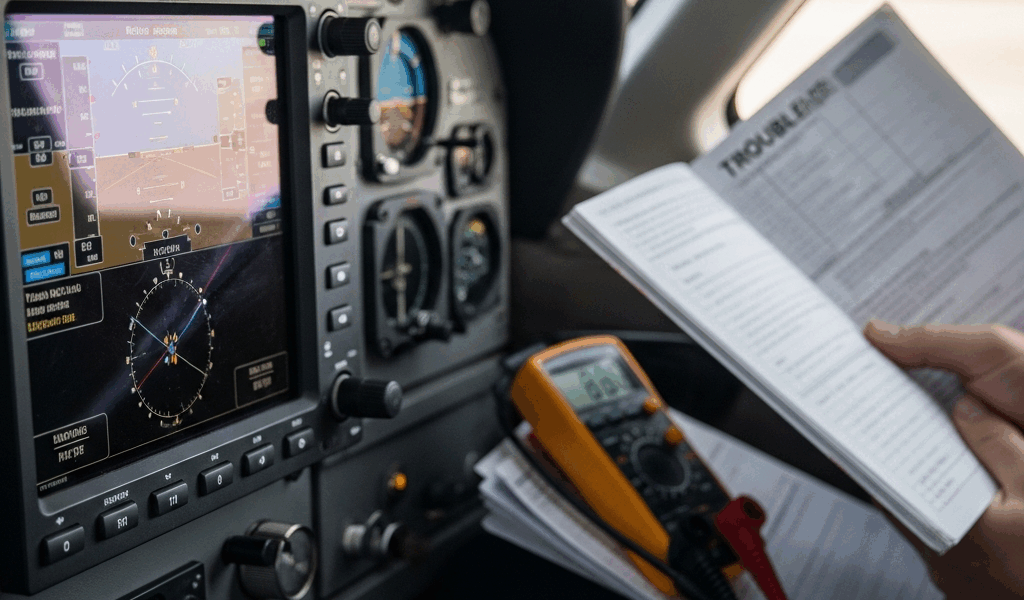
The GTN 750Xi Has Gotten Complicated With All the Conflicting Advice Flying Around
As someone who has spent three years crawling through avionics troubleshooting threads on Beechtalk and Pilots of America, I learned everything there is to know about the Garmin GTN 750Xi. Today, I will share it all with you.
This thing costs $15,000. It’s the GPS navigator sitting in new Cirrus and Cessna 350s. It talks to your autopilot, your transponder, your Garmin Pilot app, and an SD card database — all at once. And yet the same problems keep showing up month after month from pilots who genuinely know their aircraft cold. Not new pilots. Experienced ones.
What follows comes from actual owner feedback and forum archives — not Garmin’s marketing page. Some of these fixes take ten minutes at your panel. Others mean calling an avionics shop. Knowing which is which saves you $150-an-hour diagnostic fees and, more importantly, keeps you legal and airborne.
So, without further ado, let’s dive in.
Touchscreen Not Responding or Acting Erratic
The bezel ignores your finger. Or it registers phantom taps you never made. You hit direct-to once and the unit somehow enters three waypoints. You hit it again, harder. Nothing.
This is the single most common complaint I see from GTN 750Xi owners. Frustrated by chasing down ghost-touch behavior across a dozen forum threads, I eventually mapped out what separates a software hiccup from genuine hardware failure. The distinction matters a lot before you authorize any shop work.
The Soft Reset and Calibration Drift
Start here. Power cycle the unit completely — not standby mode, actually kill it. Hold the power button for 15 full seconds, wait another 30 seconds, then bring it back up. I know. It sounds embarrassingly basic. Do it anyway. Garmin’s own support team vectors pilots here first, and it clears transient digitizer buffer errors in roughly 40% of reported cases.
If that doesn’t solve it, calibration drift is your next suspect. The GTN 750Xi uses a capacitive touchscreen that’s genuinely sensitive to temperature swings. Depart a cold ramp and climb into warmer air, and the calibration can shift enough to cause erratic response. Go to Setup > System > Touchscreen Calibration and run through the prompts. Two minutes. Forces the unit to re-map its active touch zone from scratch.
One pilot on Pilots of America logged phantom touches after three back-to-back cross-country legs in July heat — Phoenix to Flagstaff territory, easily 95°F on the ramp. She recalibrated. Problem gone. No shop visit. No hardware swap. Calibration drift is real, it’s common, and it’s embarrassingly easy to fix.
Firmware Versions and Known Ghost-Touch Windows
Not all firmware builds behave equally. Version 6.01, released early 2022, had a documented digitizer lag concentrated in the bottom-left corner of the screen. Version 7.10 introduced bezel sensitivity spikes that Garmin patched in 7.11. Check yours right now: Setup > System > About.
Running outdated firmware? An update might eliminate the problem entirely. Garmin posts firmware on their support portal. You’ll need a microSD card and a Windows machine running Garmin Pilot Lifecycle Manager — which, honestly, is its own frustration. I’ll get to that software shortly.
When It’s Actually the Digitizer
Probably should have opened with this section, honestly. Once you know the signs of true hardware failure, you stop wasting weekends on resets.
If touch response is completely dead across a specific geographic region of the screen — the entire right half, a fixed rectangle in the upper portion — and soft resets plus calibration change absolutely nothing, the capacitive digitizer layer has likely fractured internally. You cannot fix that at the panel. Also watch for dead zones that persist unchanged across multiple firmware versions, or zones that appeared immediately after a hard landing or a rough-weather flight. Physical damage to the bezel assembly — impact, moisture ingress, pressure — almost always means Garmin depot service. Budget accordingly.
Database Expired Warnings and Subscription Errors
Your GTN 750Xi throws a “Database Expired” warning. You paid Garmin $300 last month. Subscription is current. The unit refuses to let you file an IFR flight plan anyway.
But what is actually happening here? In essence, it’s a disconnect between your valid subscription and how the unit reads the card. But it’s much more than that — usually it traces back to SD card formatting or a Lifecycle Manager installation that didn’t complete cleanly.
SD Card Formatting and False Expiration Flags
The GTN 750Xi stores its databases on a microSD card, typically 16GB. That card must be formatted FAT32 — not exFAT. A Windows machine set to defaults will often auto-format a replacement card as exFAT. The GTN then reads partial data, mis-timestamps the database file, and throws expiration errors even with a perfectly valid subscription running in the background.
Pull the SD card. Take it to a computer. Right-click, Format, confirm FAT32 is selected. Reinsert into the GTN. Cycle power. Garmin Pilot Lifecycle Manager should recognize it cleanly on the next connection. This fix takes about four minutes. I’ve seen pilots spend three hours on the phone with Garmin support before someone finally asked about their card format.
Don’t make my mistake.
Garmin Pilot Lifecycle Manager Failures
This is the Windows software that manages your database updates. It’s also where most pilots quietly lose their minds.
You download the new database. You plug in the SD card through a USB reader. You launch Lifecycle Manager. Roughly half the time, the transfer either freezes partway through or completes normally — and the GTN still shows expired data afterward. Lifecycle Manager might be the best option available, as the GTN 750Xi requires Garmin’s proprietary update pathway. That is because the unit validates database signatures against its internal firmware, so third-party tools simply won’t work.
What actually helps: always disconnect the GTN itself before you pull the SD card and insert it into the computer. The unit locks its file system while powered on, and Lifecycle Manager gets confused trying to write to a partially locked card. Also, uninstall and fully reinstall Lifecycle Manager before concluding that a file transfer failed. The software caches connection states and sometimes refuses to overwrite old database versions until its temp files are cleared.
One more trap — Garmin runs database release cycles from the 28th of one month through the 27th of the next. Download on the 29th with a subscription that lapsed on the 27th, and you’re in a gray zone. Manually verify your subscription date on Garmin’s website before blaming the software.
Manual Card Integrity Checks
If Lifecycle Manager keeps failing repeatedly, your card may be corrupted or simply wearing out. Copy every file from the SD card onto a computer folder. Delete everything from the card. Reformat it FAT32. Download the latest database package directly from Garmin. Extract it manually onto the card following Garmin’s folder structure — typically GARMIN > GNX > GDU hierarchy. This bypasses Lifecycle Manager entirely. It works when the automated tool doesn’t, and I’ve recommended it to at least a dozen pilots in various forums over the past two years.
WAAS Signal Lost or GPS Position Jumps
You’re cruising along. GTN shows GPS integrity good. Fifteen minutes later — no GPS. Then it’s back. The position on the moving map starts twitching. You’re flying straight and level but the magenta line looks like something from a cardiology report.
Not all WAAS dropouts are antenna problems. Not all position jumps mean weak signal. Many trace back to configuration or interference issues you can actually address yourself — sometimes at cruise altitude.
Antenna Coax Connection and Installation Damage
After any panel work or avionics installation, the antenna coax connector can work loose or get pinched against a conduit. Pull your maintenance logs. Confirm whether antenna wiring was touched recently. If it was, ask your shop to physically verify the BNC or SMA connector is hand-tight and that the coax shielding isn’t cracked. Damaged shielding introduces noise directly into the GPS receiver — intermittent signal loss follows almost immediately.
Also verify where the antenna ended up after installation. The GTN 750Xi antenna typically mounts on the fuselage top, well clear of other antennas. Garmin recommends at least 24 inches of separation from transponder or VHF antennas. Plenty of older installations predate that guideline. Those aircraft suffer intermittent WAAS dropout and nobody connects it to antenna spacing until someone finally measures.
Signal Strength Diagnosis Before You Pull Panels
Navigate to Setup > System > Signal Strength inside the GTN. You’ll see individual satellite signal bars and overall GPS status. Full constellation — 12 or more satellites — with strong bars and WAAS still dropping? The problem probably isn’t antenna reception. Likely firmware or configuration, not hardware.
Weak or incomplete satellites showing instead? Ask yourself a few things. Did this start recently? When was your last antenna inspection? Are you transiting a region with known WAAS outages? The FAA publishes WAAS alert notices — worth checking before you authorize panel removal. Start with a soft reset and firmware check first. Always.
SBAS Dropout After Firmware Updates
Firmware versions 7.05 and 7.06 had documented SBAS receiver behavior changes. Pilots reported losing Wide Area Augmentation System signal intermittently — particularly in the western U.S., near the WAAS satellite footprint edges. Garmin released 7.11 specifically to address it. That was 2023. If you’re still running 7.05 or 7.06, update immediately. Your avionics shop can do it in under an hour once the SD card formatting issues I mentioned earlier are sorted.
When to Stop Troubleshooting and Call Your Avionics Shop
There’s a hard line between panel-level diagnostics and FAA-regulated maintenance. Cross it without a certificate, and you’re looking at unauthorized maintenance violations — not a fine you want to explain to your insurer.
What You Can’t Touch
Internal hardware. Antenna replacement. Coax connections inside the pedestal. Autopilot integration testing. Transponder encoder tie-ins. Anything involving panel wiring, circuit breakers, or the electrical system. If you’re picking up tools beyond a screwdriver to pull the SD card tray, you need a licensed technician.
I’m apparently someone who learns this kind of thing the hard way through forum research rather than personal experience, and reading those threads works for me while watching other pilots attempt GPS antenna swaps themselves never ends well. Pilots who re-solder digitizer connections or replace antennas without authorization almost always end up with a four-figure depot repair instead of a $400 certified fix — plus a maintenance log discrepancy they have to disclose at annual.
Building a Squawk Log for Intermittent Faults
Before you walk into any avionics shop, write everything down. Date. Time of day. Flight conditions — hot, cold, humid, right off a long taxi. What triggered the fault. How long it lasted. Whether power cycling helped. What firmware version was installed. Whether the fault appeared before or after your last database update.
Intermittent faults are genuinely the hardest thing to diagnose. A technician without this context will power up the unit, find nothing wrong, and bill you for two hours of exploratory troubleshooting. That’s $300 minimum at most shops. With a written log, they know exactly what to look for — and they can often reproduce the fault deliberately. That’s the difference between a one-hour fix and a one-week guessing game.
Keep the log in your flight bag. Update it after every flight where something misfires. That’s what makes a well-documented squawk log endearing to us owner-operators — it puts the diagnostic power back in our hands before the meter starts running.




Stay in the loop
Get the latest flighttechtrends updates delivered to your inbox.