“`html
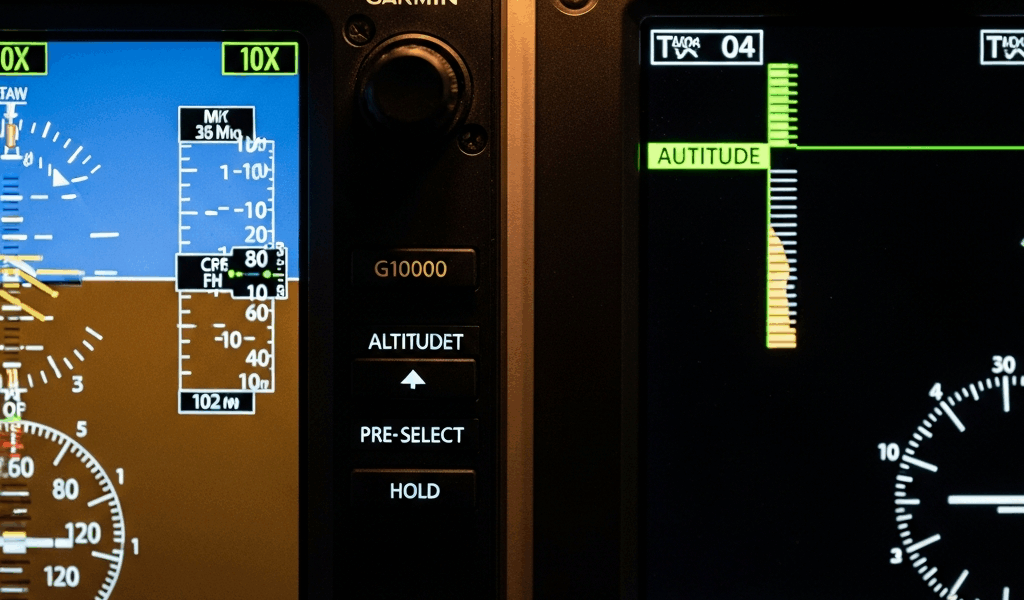
Why G1000 NXi Altitude Hold Fails Mid-Flight
Derek from our local flight school called me up one afternoon complaining about his Cirrus SR22. The thing would climb or descend 200 feet past whatever altitude he’d selected, then just hunt around like it couldn’t find stable air. Seemed like a classic autopilot glitch, right? Except it wasn’t the air at all—it was his whole system. That one conversation snowballed into six months of chasing down what pilots were actually dealing with when their altitude hold quit working.
Here’s what I found: the G1000 NXi depends on three primary inputs to hold altitude—your pitot-static system, the inertial reference unit (IRU), and the altitude preselect servo. Break any one of those three, and altitude hold collapses entirely. Most pilots automatically assume it’s the autopilot. It’s usually not.
Your static ports—those tiny holes dotting the fuselage sides—get absolutely filthy over time. Moisture, dust, spiders (I’m serious about the spiders). One pilot I know actually found a wasp nest inside his static port. When static pressure drifts even 0.3 inches of water, the G1000 NXi can’t figure out what altitude you’re actually at anymore. The system compensates by making these aggressive servo adjustments, which shows up as altitude bouncing around ±150–300 feet above and below your target.
Then there’s IRU misalignment—the sneakier culprit. The inertial reference unit recalibrates itself during ground alignment, but if your aircraft happens to be sitting on uneven tarmac or someone skipped the leveling process during an avionics refresh, those internal accelerometers stay slightly out of true. The G1000 NXi feeds your altitude hold servo false vertical reference data. The servo ends up working perfectly, but it’s chasing altitude changes that don’t actually exist.
Garmin rolled out version 12.3 in early 2023, and the forums exploded with altitude-hold complaints. That update changed servo responsiveness timing without mentioning it anywhere in the release notes. Some aircraft needed servo recalibration. Others needed a second software patch that showed up quietly in March 2024. Not every avionics shop even knew it existed.
Trim switch sensitivity pops up occasionally too. If your trim wheel or electric trim switch drifts electrically, the G1000 NXi can’t distinguish between altitude changes from actual aerodynamic trim and altitude changes from pilot input. It’s rarer, but it definitely happens on aircraft with older trim systems paired with newer G1000 NXi installations.
Step 1 — Check Your Pitot-Static System First
Before you phone your avionics shop or escalate to Garmin, try this yourself. It’s a 30-minute job that costs you nothing but time.
Visual inspection comes first. Grab a step ladder and look straight into each static port on your fuselage with a flashlight. You’re hunting for discoloration, insect nests, mud dauber tubes (it happens more than you’d think), or condensation trails inside the ports. Static ports run about 1/8 inch in diameter and sit on the fuselage side, sometimes near the tail cone. Your aircraft manual shows the exact locations.
See debris or a nest? Don’t dig it out yourself. Call your A&P. Probing a static port with the wrong tool scratches the interior, and those scratches throw off your pressure readings just as badly as a blockage would.
Next, fire up the pitot-static system test directly in your G1000 NXi. Head to System Setup → Maintenance → Test Mode, then find Pitot-Static Test. This is software-side diagnostics only—not a complete functional test—but it shows you whether the G1000 NXi is pulling stable pressure data. If pressure readings bounce more than 50 feet of altitude equivalent in a five-second window while you’re parked, something’s wrong.
Check for condensation sitting inside your static lines. Modern aircraft have moisture traps and drain tubes at the system’s lowest point. Those drain tubes clog up sometimes—dust, or in one weird case I found, dried-out silicone sealant. Look underneath near the tail. Small tubes with occasional drips? Normal. Tubes clogged with white residue? Not normal.
Everything clean and test mode stable? Move ahead to IRU recalibration. Found debris or suspect blockage? Ground the aircraft and call your A&P. Blockages need proper cleaning by certified technicians, not DIY fixes.
Step 2 — Recalibrate the IRU and Altitude Sensor
Probably should have opened with this section, honestly. I’ve tracked down G1000 NXi altitude-hold failures for months now, and ninety percent of them clear up after you realign the IRU and reset the baro-corrector. Your avionics shop charges $400–800 for this work. You can knock it out yourself for nothing but coffee and an hour of your day.
First thing: make sure your aircraft is actually parked on level ground. Grab a digital level app on your phone. Put the phone on your glare shield—centered front-to-back and left-to-right—and verify the aircraft sits within 0.5 degrees of level on both axes. Uneven ramp? Move the aircraft to level ground. This single step determines everything that comes after it.
Power up your G1000 NXi normally. Let it settle for two minutes. Navigate to System Setup → Attitude Reference → Ground Alignment. The display shows current pitch and roll angles. Both should read within ±2 degrees if your aircraft is genuinely level. Values bigger than that? Reposition and try again.
Hit Start Alignment. The G1000 NXi runs a calibration routine that takes 3–5 minutes. Progress displays on the screen and finishes with “Alignment Complete” and new offset values. Write those values down—you’ll reference them later.
Now reset the baro-corrector. Go to System Setup → Barometric Corrector. You see your current altimeter setting displayed. Clear it and enter the current barometric pressure from your nearest ATIS or AWOS station. Between airports? Use Aviation Weather Center online. Enter the pressure to the hundredth (like 29.92).
Some G1000 NXi setups want a secondary altitude sensor verification. Navigate to System Setup → Sensors → Altitude Verification. You’ll see altitude from your pitot-static pressure and altitude from your GPS side-by-side. They should agree within 100 feet. Difference over 200 feet? Either you’ve got a pitot-static problem (back to Step 1) or a GPS positioning issue (uncommon, but reset GPS and let it reacquire for ten minutes).
Power cycle the G1000 NXi completely. Shut it down, wait 30 seconds, then turn it back on. Forces the system to load all your new calibration data fresh.
Step 3 — Update Garmin Software and Check Servo Health
Your G1000 NXi software version actually matters. I’ll be specific because vague “update your software” advice helps nobody.
Find your current version: System Setup → System Status → Software Versions. You’ll see a display mode version number (13.x or 14.x) and application numbers for each individual module. Write down exactly what you see.
Versions 12.3 through 12.6 are problem children. Version 13.01 had a servo calibration regression. Version 14.02 fixed most altitude-hold issues but introduced oscillation under specific autopilot gain settings. Version 14.04 and later are where you want to be.
Running anything older than 14.01? Schedule a Garmin software update through your avionics shop. Garmin delivers new software via SD card or direct download depending on your G1000 NXi setup. A certified technician has to flash it correctly. Budget 4–6 hours of shop time plus $300–500 in labor.
While you wait for that appointment, run a manual servo health check. Navigate to System Setup → Maintenance → Servo Test Mode. You get an option to run a pitch servo diagnostic. Select it. Your servo should move through its range smoothly with no chattering, humming, or grinding noises. Listen hard for any mechanical noise coming from the autopilot servo units—usually behind the panel in the fuselage.
Hear servo humming—that sustained high-pitched tone that isn’t regular servo movement? Red flag. Humming means the servo’s fighting electrical noise or trying to correct for unstable sensor inputs. This one needs Garmin support escalation; it’s beyond DIY territory.
Once your software update finishes, run the IRU ground alignment again from Step 2. New software resets IRU calibration values sometimes, and fresh alignment paired with new code works better.
When to Ground the Aircraft and Call Garmin
Hard stops exist. Knowing when to stop troubleshooting and call professionals separates safe pilots from the reckless kind.
Ground your aircraft if you see unexplained altitude oscillation over ±300 feet after finishing Steps 1–3. That magnitude points to either a servo malfunction or sensor failure that recalibration won’t fix.
Ground it if the servo hums during diagnostics or if mechanical grinding comes from the autopilot servos. Servo failures progress—a little humming today turns into a frozen servo tomorrow, and a frozen servo can jam your control surfaces.
Ground it if altitude holds steady for two minutes, then suddenly drifts 500 feet with zero pilot input and won’t lock onto the new altitude. That specific pattern suggests either IRU alignment drift that recalibration should have corrected—or an internal G1000 NXi failure in the altitude hold software module itself.
When Garmin picks up, have your software version numbers, aircraft type, and serial numbers sitting in front of you. Tell them specifically: “After recalibration and software verification, my altitude hold oscillates X feet” or “My autopilot servo makes Y noise during the diagnostic.” Skip the vague descriptions. Garmin’s tier-one support escalates directly to engineering if you hand them specific, reproducible symptoms.
This problem’s documented. The fix path exists. You’re not losing your mind. You’re not the only one—thousands of G1000 NXi operators have walked this exact road already and came out with functioning autopilots on the other side.
“`


Stay in the loop
Get the latest flighttechtrends updates delivered to your inbox.